

Firewall-based certificate#
This is one of the two ways to obtain an SSH certificate described in Obtaining an SSH certificate.
Start up your SSH agent.
We recommend using the Windows OpenSSH agent for PowerShell or Command Prompt users, and Pageant otherwise.
Use the default SSH Agent with OpenSSH.
Use the default SSH Agent with OpenSSH.
Add the certificate to your agent:
Connect to either the cluster’s login node or to
firewall.vscentrum.be. With e.g. OpenSSH you can do:ssh -A vsc98765@login.hpc.kuleuven.be # or ssh -A vsc98765@firewall.vscentrum.be
Connect to
firewall.vscentrum.be. With e.g. OpenSSH you can do:ssh -A vsc98765@firewall.vscentrum.be
PuTTY users can find the agent forwarding option under the ‘Connection -> SSH -> Auth’ tab. OpenSSH users may also automatically enable agent forwarding in their SSH config file.
You will then be shown a URL which you will need to open in a browser:
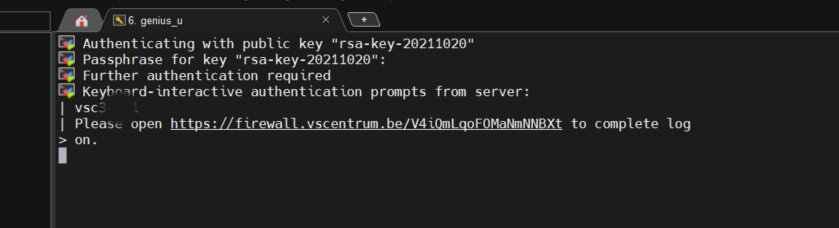
Note that when using PuTTY or MobaXterm, simply highlighting the link with your mouse will copy the URL to your clipboard. Avoid using ‘CTRL-C’, or it will send a
SIGINTsignal interrupting your process instead of performing a copy operation.From the drop-down menu, choose the institute you are affiliated with. Below, we show an example of a KU Leuven user, but one has to pick the institute he/she is affiliated with.

You will be forwarded to the Identity Provider (IdP) of your institute, and you need to login in a usual way using your registered credentials.
KU Leuven/UHasselt For KU Leuven users, the page looks like the following:

KU Leuven/UHasselt If you are already connected to the internal network, then you will be only asked to identify yourself with the MFA authenticator app on your personal phone:

This step may not be necessary when connecting from a white-listed IP address, like the internal networks of the Flemish universities, using a static on-site IP as well as the institutional VPN. For example, if you have already logged upfront into your institution’s network then you might not be required to log in again depending on your browser session settings (e.g., accepted cookies).
Once you are successfully authenticated, you end up on a page telling you that your VSC identity is confirmed. If you have already performed the previous login in that browser session, you will immediately end up on this page:
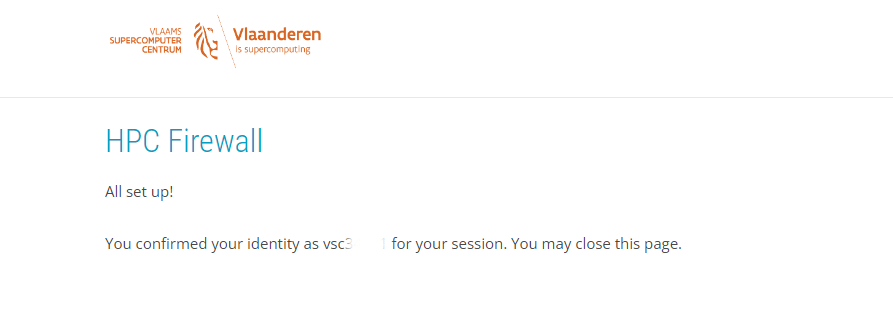
An SSH certificate will now be injected back into the agent.
That’s it! You can continue doing your HPC work as usual.
Connecting without an SSH agent#
KU Leuven Most clients (such as PuTTY or MobaXterm) can also be made to work without an SSH Agent. Keep in mind, however, that this approach tends to be less convenient since each new connection will require multi-factor authentication.
Certain clients (such as FileZilla or sshfs)
furthermore do not show you the firewall
link needed for the MFA and hence can only function in combination with an SSH
agent holding an SSH certificate.
This being said, the agentless procedure runs as follows:
Connect to a Tier-2 login node using your chosen client application (e.g. MobaXterm).
The application is then supposed to show the link to complete the MFA procedure (similar to the previous section).
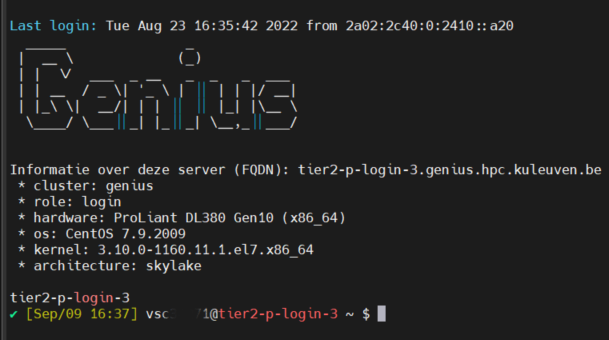
After passing the MFA challenge, you should now be connected to a login node. In plain SSH connections a successful login is rewarded with a welcome message: